Skip to packages
01 / THE COLLECTION

Choose your package.

Start with Ultimate or Max, or switch to Windows / BIOS and OC for a specific part of your setup.

Looking for a remote session or the Utility?Find the existing services in Windows / BIOS. PureOS 2.0 availability is shown on each package.

Explore Windows / BIOS

Start with everything.

All-in-One or Max: choose a combined package for the connected layers of your setup.

Checking availability…

Explore OC and PureOS 2.0 packages and choose the right service for your setup.

OC / PUREOS 2.0
02 / COMPLETE YOUR SESSION

A little extra support.

Existing service add-ons for priority scheduling or a refresh of a previously optimized system.

03 / HOW IT WORKS

From choice to setup.

Understand what you are choosing before getting started. Each product has its own detailed page.

01

Explore the details.

Compare the included work, the kind of setup it suits and what to prepare. Bundles combine several areas; the tabs help you focus on one.

02

Add your package to cart.

Choose from Windows, BIOS, OC and PureOS 2.0 packages, the Utility and service add-ons. Add your selection to the cart and continue to checkout.

03

Continue with the team.

Use your account for checkout and follow your order instructions. Remote services are coordinated in Discord; Utility orders follow the software license and installer flow.

Safe & Flexible

Accepted Payment Methods

Choose an available method and follow the payment instructions shown at checkout.

PayPal
Friends & Family
Bank Transfer
Currently unavailable
Paysafe
+25% Processing Fee
THE SOFTWARE / PURE TWEAKING UTILITY

Control at
every layer.

Step inside Pure Tweaking Utility. Browse the original interface, explore its categories, and read the explanations from the Windows app.

Explore the utility package
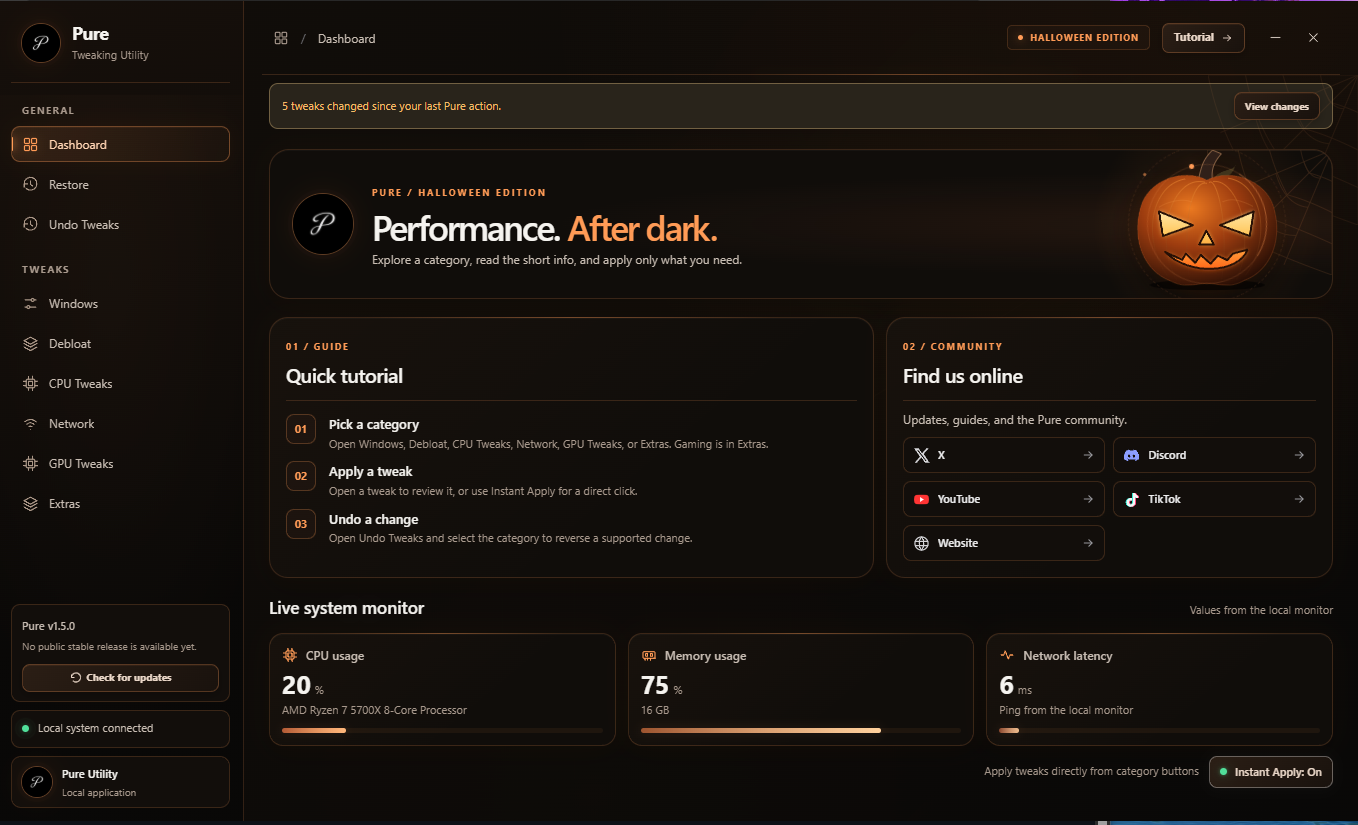
PURE TWEAKING UTILITY Original app interfaceOpen full preview
Pure Tweaking Utility dashboard with Windows, Debloat, CPU Tweaks, Network, GPU Tweaks, Extras, Restore and Undo Tweaks
Explore the original app interface.Apply changes in the Windows app.
Got Questions?

Frequently Asked Questions

Clear, honest answers about our optimization methodology, system safety, and what to expect.

We avoid unsafe over-voltage overclocking and review changes against your hardware and stated goals. Compatibility and stability depend on the specific system, so changes should be discussed and checked before they are applied.
A restore point or backup should be prepared before the session. Windows recovery options vary by system, and a restore point is not a substitute for a separate file backup. We discuss the available recovery plan and the changes being considered before work begins.
The standard Full System Optimization session takes approximately 45 to 60 minutes. The Full Optimization + BIOS Tuning takes around 60 to 80 minutes to allow for thorough BIOS navigation and post-tuning validation tests.
Warranty terms depend on the manufacturer, region, and specific change. We use manufacturer-supported settings where applicable, but recommend checking the terms for your hardware before making BIOS or system changes.
We work with Windows 10 and Windows 11 gaming systems. The effect of any change depends on the hardware, configuration, and game; competitive titles such as Valorant, Counter-Strike 2, Fortnite, Apex Legends, Warzone, Rainbow Six Siege, and Overwatch 2 can provide useful, game-specific benchmarks.
You can ask questions in your private Discord support ticket after your session. If you perform a clean reinstall of Windows later, you can book the Re-Tweak add-on to reapply your optimizations.
Talk to the team

Looking for a more responsive gaming setup?

Need help with your setup, a HWID reset, a bug, or a business inquiry? Open our Discord panel and keep every reply in one private ticket.

Open a ticket
Private Discord ticket
Recommendations based on your setup
Changes reviewed before applying